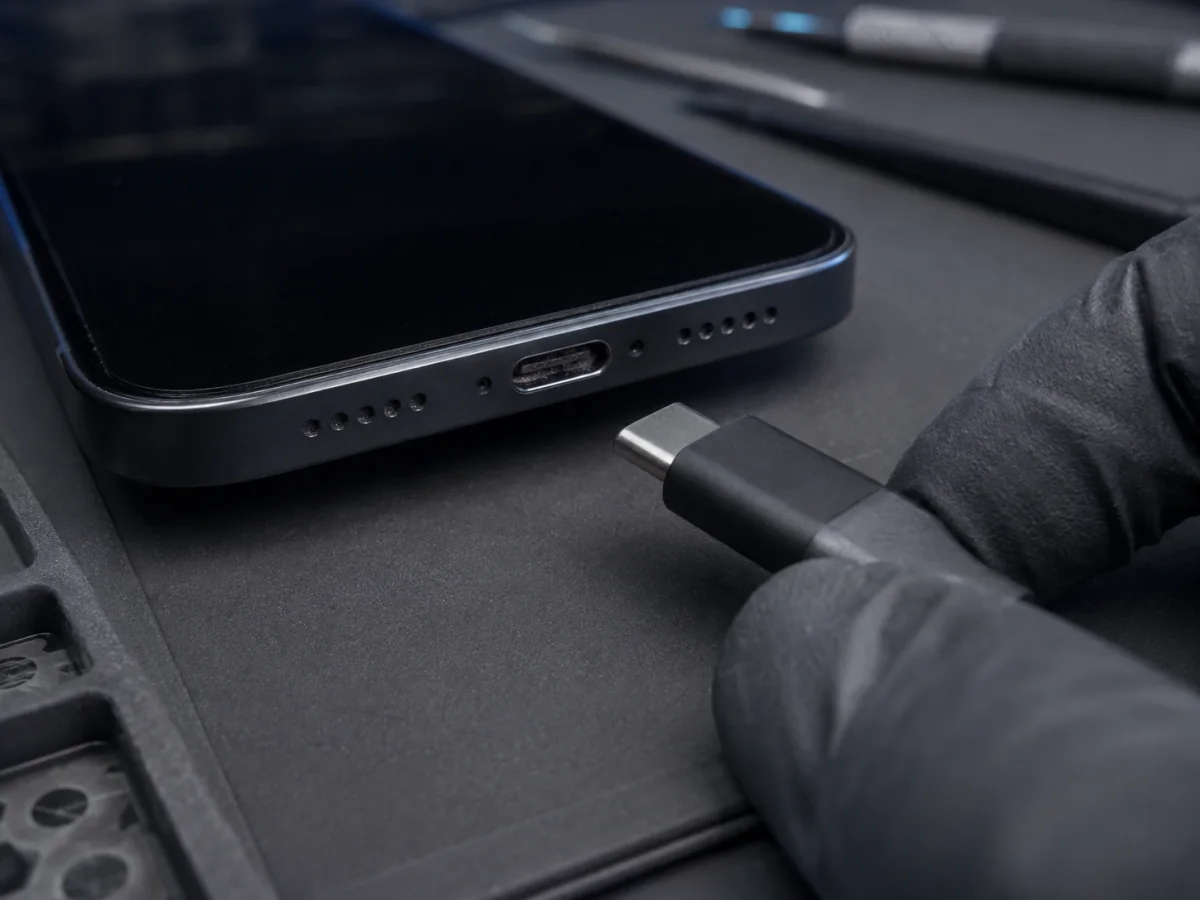
Charging ports collect pocket lint one thin layer at a time. Each plug compresses it farther into the back of the connector until the cable appears to click in but never reaches its designed depth. That is common—but not every loose cable is lint. Worn cable ends, thick cases, damaged contacts, corrosion, and a mechanically loose port create similar symptoms. The way the plug fits and fails matters more than how the problem is described.
Start with checks that cannot damage the port
- Disconnect the cable instead of finding a position and leaving it under sideways force.
- Remove the case if it crowds the plug opening or prevents the connector housing from sitting flush.
- Try a known-good compatible cable—not merely another old cable from the same drawer.
- Try another adapter and outlet. A power-source failure can look like a connection problem.
- Look for a liquid-detection alert. If one appears, unplug immediately and follow the drying process rather than cleaning or forcing the plug.
- Restart once after the physical checks if the fit feels normal but charging is not recognized.
What the physical fit tells you
The case may obstruct it, or compacted material may occupy the back of the port. Compare with a clean device of the same connector type if available; do not force it deeper.
The first cable is the leading suspect. Retire it if the end is worn, bent, discolored, cracked, or hot during use.
Damaged contacts, a worn connector, a loose internal assembly, corrosion, or board-level charge-path trouble becomes more likely.
Disconnect it. Heat at the plug can indicate a poor high-resistance connection, damaged accessory, contamination, or port damage and is not something to stabilize with pressure.
Cleaning: the safest useful boundary
Apple’s public troubleshooting says to remove debris from the charging port, but that does not make every home technique safe. The connector contains small contacts and, on USB-C, a delicate center tongue. Bright light and magnification can tell you whether material is present; they do not make a pin, knife, staple, SIM tool, or liquid cleaner appropriate.
- Power the iPhone off and disconnect every cable before inspection.
- Do not use metal tools, spray cleaners, contact cleaner, water, or alcohol inside the port.
- Do not use compressed air; Apple specifically advises against it for liquid-detection drying, and pressure can move contamination rather than remove it.
- Do not scrape blindly. If you cannot clearly see the material and the connector surfaces around it, stop.
- If lint is densely packed, the port has green or white residue, contacts look bent, or the center tongue is damaged, arrange bench cleaning and inspection.
A professional cleaning should happen under magnification with the phone powered down, followed by fit, charging, data/accessory, and current-draw checks. Cleaning is successful only if the cable seats normally and remains stable without pressure.
Match the charging pattern to the likely branch
Cleaning, port replacement, or deeper diagnosis?
If packed debris is the only problem, careful cleaning can restore the designed fit without replacing anything. If multiple known-good cables remain unstable after the port is visibly clear, service should test the port assembly and charge path rather than guessing from appearance.
Depending on the iPhone model, the charging connector may share an assembly with microphones and other components. A complete diagnosis should record microphone behavior, wired charging, accessory recognition, computer data connection, wireless charging, battery condition, and liquid or impact history before recommending a part.
What to send for a useful quote
- Exact iPhone model and Lightning or USB-C connector
- Whether the plug sits flush and whether more than one cable was tested
- Whether wireless charging works
- Any heat, liquid alert, drop, repair, or corrosion history
- Whether a computer recognizes the iPhone
- A clear, well-lit photo of the port—without inserting anything for the photo
Send the model, fit pattern, and what you already tested. That is enough to choose cleaning, port inspection, or deeper diagnosis.
FAQ
Why does the cable click in but still feel loose?
Compacted debris may let the retention mechanism engage before the plug reaches full depth, or the plug and port may be worn. Compare multiple known-good cables and inspect the seating gap.
Can wireless charging replace fixing the port?
It can keep a compatible iPhone powered temporarily, but wired data, CarPlay, accessories, recovery, and efficient charging may still depend on a working port.
Will port cleaning erase my data?
Ordinary external port cleaning should not erase data. Any device with important information should still have a current backup before repair because condition and access can change.
Does the port need replacement if the phone is old?
Age alone does not decide it. The connector’s fit, contamination, corrosion, accessory tests, and electrical behavior should determine whether cleaning or replacement is justified.
Sources and notes
This guide combines Apple’s accessory and charging checks with repair-bench evaluation of connector fit, contamination, and impact damage.