Face ID is not a single selfie camera. The TrueDepth system uses multiple components, controlled illumination, depth sensing, alignment, software, and security calibration. That is why “the front camera still takes photos” does not rule out a Face ID hardware problem—and why guessing at one sensor is not a reliable repair plan.
Five safe checks before assuming damage
- Expose the sensor area. Remove the case and screen protector, especially if either overlaps the Dynamic Island or notch.
- Clean the front glass. Use a clean, dry microfiber cloth. Oil, dust, and cracked protector edges can obstruct the TrueDepth view.
- Check settings. Open Settings → Face ID & Passcode and confirm Face ID is set up for the feature you are trying to use.
- Restart and enter the passcode. Face ID normally requires the passcode after a restart before it resumes.
- Reset Face ID once. In Face ID & Passcode, choose Reset Face ID, then attempt setup again in normal lighting with the phone roughly an arm’s length or closer.
If setup completes and recognition returns, the issue was likely obstruction, positioning, configuration, or a temporary software state. If setup cannot see your face, repeatedly says to move higher or lower, or reports that Face ID is unavailable, the failure is more specific.
The exact behavior narrows the cause
If it failed after a drop
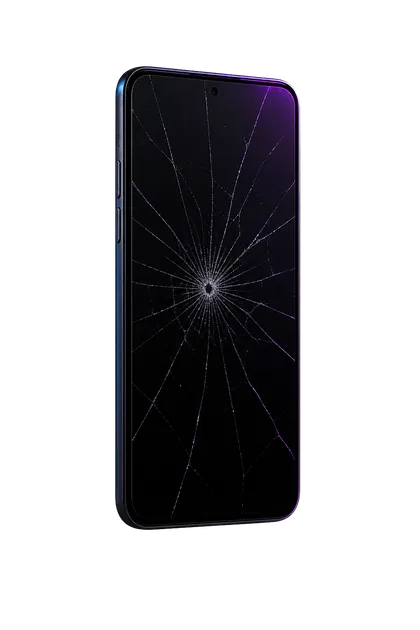
A drop can crack glass over the sensor area, bend the frame, shift or damage internal assemblies, loosen a connection, or damage the TrueDepth system without leaving obvious exterior damage. Test and record:
- Front-camera photo and video focus
- Portrait mode and depth effects
- Proximity behavior during a phone call
- Whether the display turns off correctly at your ear
- Any crack, black spot, bright line, or lifted glass near the top of the display
- The exact Face ID message and whether a new setup can begin
If it failed immediately after a screen or camera repair
A normal screen replacement does not automatically mean Face ID must stop working. The timing is important, though. Contact the repairer promptly and explain whether Face ID worked immediately before the repair.
On supported models and iOS versions, open Settings → General → About. Look for Display, TrueDepth Camera, Front Camera, Genuine, Used, Unknown, or Finish Repair messages.
On supported devices and parts, Repair Assistant completes calibration. Apple says Face ID may remain unavailable until calibration is finished.
It can mean a nongenuine, previously used, malfunctioning, unverified, or incompletely calibrated part depending on model and iOS version.
Parts-history coverage varies by iPhone model. A physical or connection fault can still exist.
Why this is not a good trial-and-error DIY repair
The TrueDepth system supports identity, payments, health information, and app authentication. Apple states that only a trained technician should service it and warns that improper repair or modification of its laser systems can defeat safety mechanisms and risk injury.
Randomly replacing front components can add calibration problems without fixing the original fault. A useful diagnosis begins with the model, history, warning, camera tests, and parts history; then it follows the manufacturer-supported service path for that device.
Arrange service when
- Face ID setup cannot complete after the safe checks
- The iPhone reports a TrueDepth camera problem
- The front camera is black, blurry, unstable, or abnormal
- The top of the display is cracked, lifted, or pressure-damaged
- The problem began immediately after a drop, liquid exposure, or repair
- Parts and Service History shows Finish Repair, Unknown, or an Issue for the relevant part
What to send for diagnosis
- Exact iPhone model and iOS version
- The exact Face ID message or a screenshot
- Whether a new Face ID setup starts or fails
- Front-camera and Portrait-mode behavior
- Drop, liquid, and repair history—including when Face ID last worked
- Screenshot of Parts and Service History, if present
Send the model, exact warning, front-camera behavior, and repair history.
FAQ
Can a screen protector stop Face ID?
Yes, if it is dirty, damaged, poorly aligned, or covers the TrueDepth area. Remove it as a test rather than assuming an internal failure.
Will resetting Face ID erase anything else?
No. It removes the saved Face ID appearance so you can enroll again. It does not erase the phone.
Can water damage Face ID?
Yes. Liquid and corrosion can affect the front sensor system or its connections. Do not charge or repeatedly test a wet phone.
Why does it ask for my passcode even when Face ID works?
That can be normal after restarting, after certain security events, or after multiple failed recognition attempts. A passcode request alone does not prove Face ID is broken.
Sources and notes
This guide distinguishes user checks from trained service. It does not identify a failed TrueDepth component remotely.