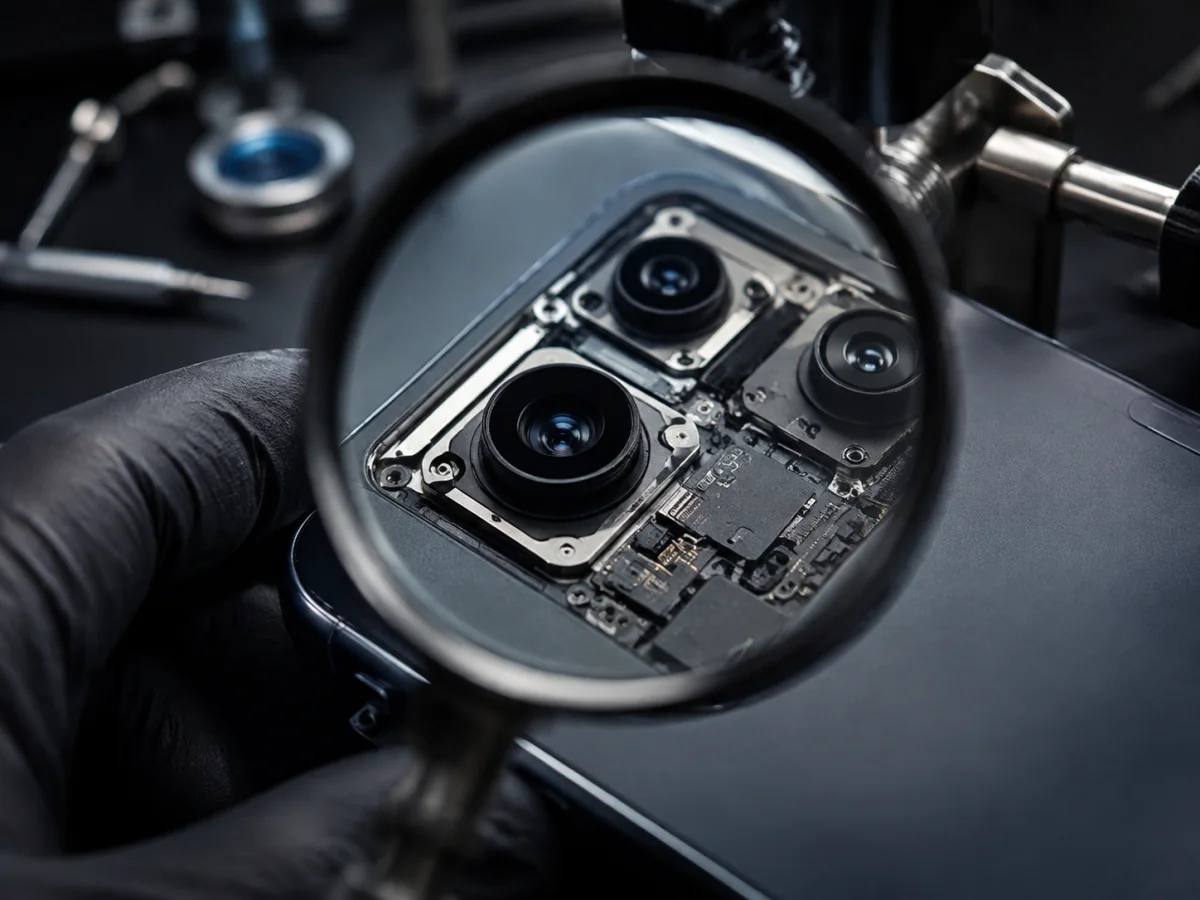
Modern iPhones may contain several rear cameras, each with its own optics and role. Some use autofocus and optical image stabilization that physically move lens or sensor elements. A case magnet, damaged exterior glass, debris, app problem, or failed camera assembly can all produce “blurry camera,” but the movement, sound, affected zoom level, and accident history separate them.
Five tests that do not risk the camera
- Remove every accessory around the camera. Take off the case, magnetic mount or ring, wallet, lens cover, protector, filter, and add-on lens.
- Clean only the exterior. Use a clean, dry microfiber cloth. Do not push liquid around cracked camera glass or into a missing lens cover.
- Use the Apple Camera app. A failure in one social app can be permissions, compression, or the app—not the camera hardware.
- Test in bright, even light. Tap a high-contrast subject several feet away and hold still. Low light naturally lengthens exposures and makes motion blur easier to see.
- Restart, update, and retest after a current backup. Compare photo, video, front camera, flash, and each available rear zoom choice.
Find out whether one camera is responsible
Switch through the zoom choices shown in the Camera app. Depending on the model and lighting, iOS may choose or blend cameras, so the label is a clue rather than a laboratory guarantee. Still, a clear change at one view is extremely useful.
Clean and uncover the top display area. If Face ID also failed after a drop or repair, the TrueDepth system needs its own diagnosis rather than assuming the rear-camera problem applies.
A specific camera, its exterior glass, or its optical path is the leading branch. Record which displayed zoom setting triggers the shake or blur.
Check the shared exterior conditions first: case, protector, condensation, severe camera-glass damage, app, and software. More than one component can also be damaged by a hard impact.
Test permissions, update the app, restart, and reinstall that app if its data is safely synchronized. Hardware is less likely when Apple’s Camera app is consistently normal.
What the exact symptom suggests
Camera glass versus the camera module
The visible cover on the outside of the phone is protective camera glass, not the entire camera. Replacing broken cover glass can restore a clear optical path when the lens beneath is undamaged. It does not repair a camera that shakes, clicks, has internal contamination, cannot focus, or lost electrical communication.
- Glass-only clues: visible chip or crack crossing one lens, sharp photos through other lenses, flare located around the damaged cover, and no mechanical sound.
- Module clues: shaking preview, clicking, failed focus at normal distances, black view, stabilization failure, or a problem that remains with clear intact exterior glass.
- Both may be damaged: a direct strike can break the outer glass, introduce contamination, and shock the internal camera at the same time.
Cover broken camera glass promptly. Dust and moisture entering through the opening can contaminate optics and turn a smaller exterior repair into a camera replacement.
After a previous repair
Open Settings → General → About and look for Parts and Service History when available. On supported iPhone models, camera history may show Genuine, Used, Finish Repair, or Unknown. Apple explains that Finish Repair means calibration is incomplete; Unknown can reflect a nongenuine, unverified, modified, incomplete, or malfunctioning part.
A message is not the whole diagnosis. Note whether the camera worked immediately after the repair, whether calibration was completed, and whether the issue began after a later drop. Return promptly to the repair provider when the symptom started with their work.
What a complete camera repair should test
- Exterior glass, frame, camera bump, and signs of impact or liquid entry
- Each available front and rear camera in photo and video
- Autofocus at near, medium, and distant subjects
- Stabilization while stationary and during normal hand movement
- Flash, microphone audio in recorded video, and camera switching
- Portrait, macro, and other model-specific functions where supported
- Parts and Service History and required Repair Assistant calibration
Camera replacement should follow isolation, not precede it. A damaged connector, board path, missing calibration, or broken exterior glass can change the correct repair.
Record the sound and preview with another phone, then send your model, affected zoom, and drop or repair history.
FAQ
Why does tapping the phone temporarily fix focus?
Impact can momentarily move a stuck or damaged optical mechanism, but tapping is not a safe or reliable repair. It can worsen the camera, glass, connectors, or nearby components.
Can a software update cause camera shaking?
Software affects camera control, so update and restart are sensible tests. Persistent physical jitter or clicking on one camera after accessory removal is stronger evidence of hardware trouble.
Can I keep using the other camera?
Usually, if the phone is otherwise safe and the damaged glass is sealed. Avoid exposing broken camera glass to dust or moisture, and do not repeatedly activate a camera that chatters mechanically.
Will camera replacement affect my photos?
Existing photos are stored separately and ordinarily remain on the phone. Back up before service anyway, and test camera quality and calibration afterward.
Sources and notes
This guide follows Apple’s camera-isolation and Parts and Service History guidance, with additional symptom-based repair diagnosis.