A spill changes the first step
A keyboard that stopped after coffee or water needs a different response from one that types the wrong punctuation. Liquid can reach more than the key mechanism. Shut down when safe, unplug power, and avoid another startup “just to check.” Follow the laptop spill guide and explain whether saving the data is the priority.
Stop for a raised keyboard deck or trackpad, a separating case, unusual heat, or a burning smell too. Pressing harder or flattening the case will not resolve an underlying battery or structural problem.
Separate one app from the whole keyboard
For a dry laptop, save your work and restart normally once. Open a blank document in a simple local text editor, then try the same keys in another app. Avoid online keyboard testers that ask you to type passwords or install anything.
- Wrong characters: inspect the selected language or keyboard layout before ordering a replacement.
- Shortcuts instead of letters: check whether a modifier key is physically stuck or a remapping utility is active.
- One app only: investigate that app’s shortcuts and input configuration.
- The same keys fail everywhere: keep those results for the hardware comparison.
I want the exact keys and behavior: missing, repeating, delayed, or mechanically stuck. “Some letters fail in every app” is much more useful than “the laptop is acting weird.”
Check input settings you may have changed
On a Mac, Apple recommends checking System Settings → Accessibility → Keyboard for Slow Keys, and Accessibility → Pointer Control for Mouse Keys. If either was enabled accidentally, restore your intended setting and retest. Slow Keys changes how long a key must be held; Mouse Keys can change what certain keys do.
Also check the input layout in the menu bar. Apple notes that Caps Lock deliberately has a short activation delay; that single behavior is not enough to diagnose a failing keyboard. See Apple’s key-response guidance.
For Windows, check your selected input language and any accessibility or keyboard-remapping settings you recently changed. Keep accessibility features you intentionally use; the goal is to identify a change that explains the symptom.
Use an external keyboard as a comparison
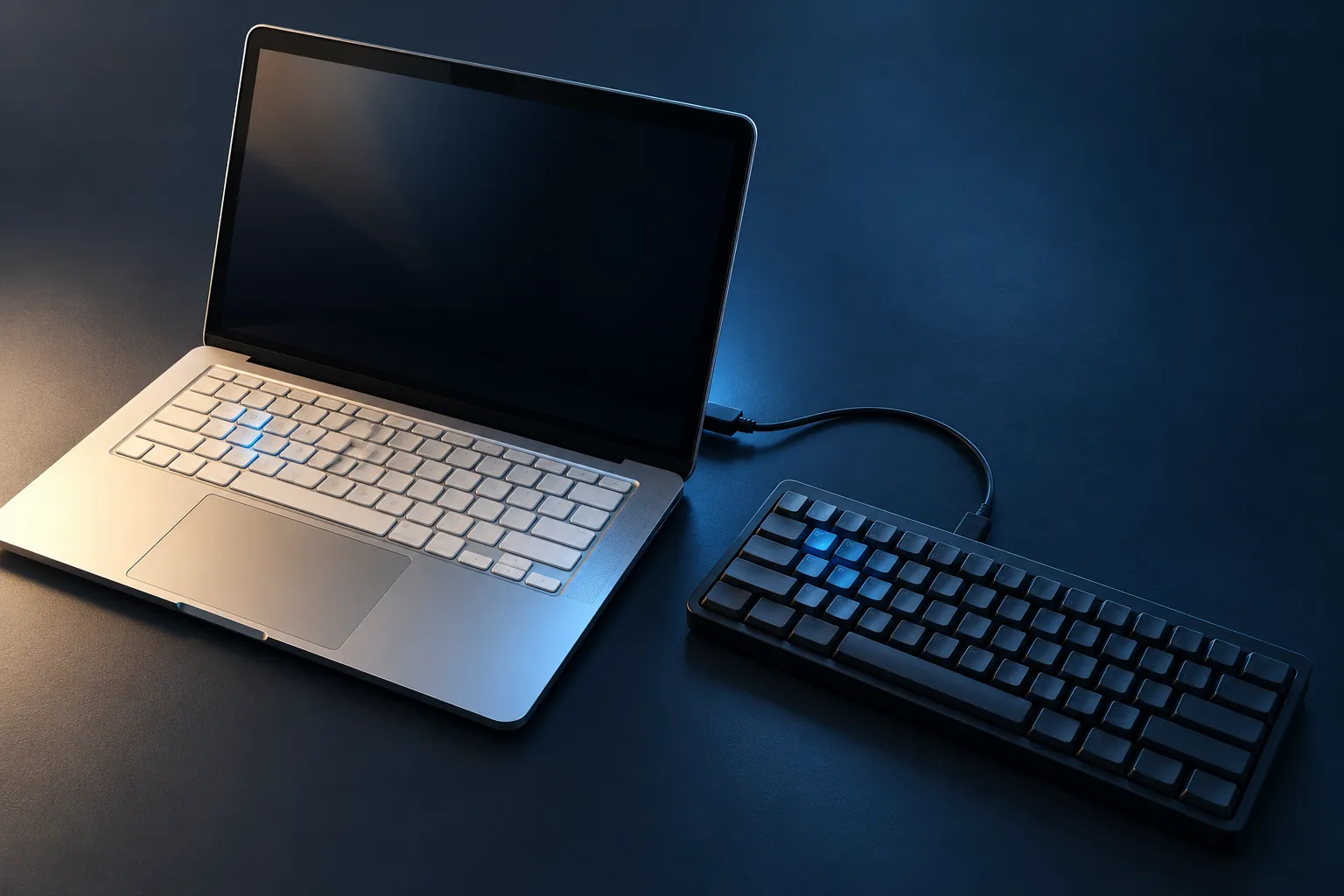
If one is available, connect a known-working USB keyboard directly to the laptop. Use an appropriate adapter if needed and compare the same text in the same app. For a wireless keyboard, first confirm power and connection; otherwise you have added another uncertain variable.
Microsoft recommends checking cables and ports, bypassing USB hubs, and comparing a suspect external device on another PC. Normal Windows Update or the laptop manufacturer’s support page is preferable to an unfamiliar “driver fixer.”
- External works; built-in still misses the same keys
- The built-in keyboard or its connection deserves inspection. This narrows the branch without proving a specific failed component.
- Both keyboards fail only in one app
- Start with that app’s input behavior before a keyboard replacement.
- Both produce the same wrong characters
- A shared input layout or software setting is worth checking first.
Leave the keycaps on and protect your work
Laptop key mechanisms differ by model and are easy to damage when lifted the wrong way. Do not pour cleaner under keys, force a sticky key, or follow a generic key-removal video. Photograph visible damage and get model-specific cleaning advice before attempting anything underneath.
A working external keyboard can keep a dry, otherwise stable laptop usable while you back up and plan service. It does not make a spill-damaged or swelling laptop safe. Send the full model, affected keys, accident history, and the external-keyboard result for a keyboard repair assessment. Those details help me choose the next inspection before discussing parts.
Common questions
Can I pull off a stuck laptop key to clean it?
Do not start with key removal. Laptop mechanisms vary by model and can break during removal. Get model-specific guidance or arrange inspection.
Does a working USB keyboard prove the laptop keyboard needs replacement?
It narrows the problem toward the built-in input path, but does not identify the failed component. The keyboard, connection, and relevant settings still need assessment.
Can I keep working after a spill if an external keyboard works?
No. External input does not establish that the laptop is safe to power. Shut down when safe, unplug power, and arrange liquid-damage inspection.
Sources & scope
Manufacturer guidance checked September 30, 2026. The comparisons help choose the next test; they do not diagnose an unseen device. Model-specific instructions take priority.
Keep going
The next useful step.
Dealing with this right now? In Hailey or the Wood River Valley, send me the model and what you observed for help choosing the next step.